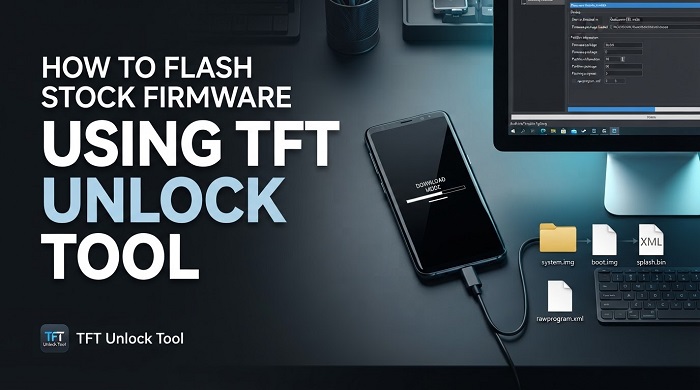
TFT Unlock Tool can be used to flash stock firmware to get a device working and back to factory condition if it is bricked, stuck in a boot loop, or malfunctioning after a failed update.
This guide explains how to flash stock firmware on Qualcomm devices using TFT Unlock Tool, including how to select the correct firmware, prepare the device, enter EDL mode, load the firmware package, and complete the flashing process safely.
Before You Start
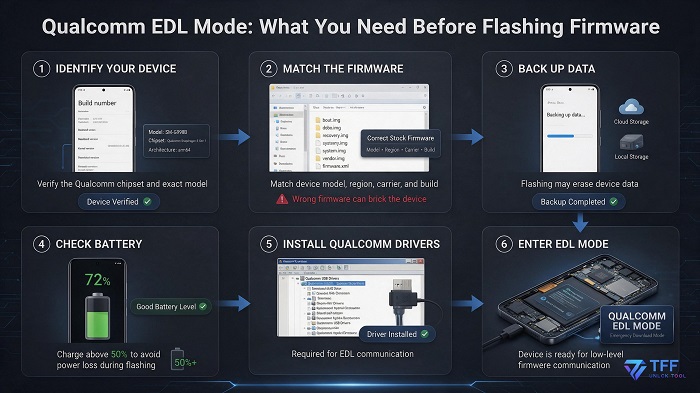
Firmware flashing is not necessarily complicated, but several preparation steps are important. Skipping them can turn a repairable problem into a more serious one. Take a few minutes to verify the device and firmware before starting.
- Confirm your exact device model and chipset: Firmware can be chipset-dependent and, in some cases, model-dependent. Flashing an incorrect build can leave the device unusable.
- Back up as much data as possible: If the device can still boot into recovery or diagnostic mode, back up accessible files before beginning. Flashing firmware may erase data.
- Charge the battery above 50%: Losing power during a firmware flash can interrupt the process and potentially cause additional problems.
- Match the firmware build precisely: Check the device model, region, carrier variant, and firmware version before flashing.
Important: Always verify that the firmware package is specifically compatible with your device before starting a flash. Do not use a firmware package simply because it appears similar to your device model.
How to Flash Stock Firmware Using TFT Unlock Tool: Step-by-Step
After verifying your device information and backing up any accessible data, follow the steps below to flash stock firmware to a Qualcomm device using TFT Unlock Tool.
Step 1: Identify and Download the Correct Firmware File
First, identify the exact device model and find the corresponding official stock firmware package. Whenever possible, obtain the firmware from the device manufacturer's firmware repository or a trusted firmware database.
Pay close attention to the device model, region, carrier variant, firmware version, and Qualcomm chipset. Using the wrong firmware build can cause serious boot or hardware-related problems.
Verify the model, region, carrier and firmware build before downloading or flashing the package.
Step 2: Install TFT Unlock Tool and Required Drivers
Install TFT Unlock Tool on your Windows computer and make sure the required Qualcomm USB drivers are installed.
Qualcomm drivers allow the computer and TFT Unlock Tool to communicate with the device when it is connected in EDL mode. If the appropriate drivers are missing, the computer may not recognize the device during the flashing process.
Step 3: Extract the Firmware Package
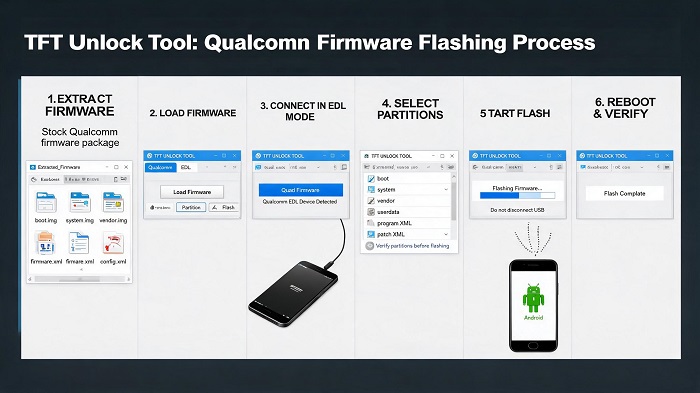
Extract the downloaded firmware package into a dedicated folder on your computer. Qualcomm firmware packages commonly contain multiple partition image files together with XML or configuration files.
TFT Unlock Tool uses the firmware files and partition information to determine what needs to be written to the device during the flash.
Step 4: Put the Device Into EDL Mode
Put the Qualcomm device into EDL (Emergency Download) mode. The exact method varies by device and may involve a key combination, test point, or diagnostic command.
EDL mode provides a low-level communication mode that allows supported Qualcomm devices to communicate with flashing software even when the normal Android operating system cannot boot.
Use the method appropriate for your specific device and confirm that it is ready for EDL communication.
Step 5: Connect the Device and Launch TFT Unlock Tool
Connect the device to your computer using a reliable USB data cable and launch TFT Unlock Tool.
Check that the tool detects the connected device in EDL mode before continuing. If the device is not recognized, check the Qualcomm USB drivers, USB cable, and USB port before proceeding.
Step 6: Load the Firmware and Partition Files
Open the appropriate Qualcomm flashing section in TFT Unlock Tool and load the extracted firmware package. Depending on the firmware package, you may need to select or load the relevant XML and partition files.
Before starting the flash, review the partitions that are selected. If you are not intentionally erasing specific partitions, be careful not to overwrite important device-specific information such as calibration data or IMEI-related data.
Step 7: Start the Flash Process
Once the firmware and required partition files have been verified, start the flashing process from TFT Unlock Tool.
Do not disconnect the USB cable, shut down the computer, or interrupt the tool while the firmware is being written. Depending on the size of the firmware package and the device, the process may take only a few minutes or more than ten minutes.
Leave the device connected and allow TFT Unlock Tool to complete the flashing process.
Step 8: Reboot and Verify
After TFT Unlock Tool reports that the flash has completed successfully, disconnect the device when appropriate and restart it.
The first boot after flashing stock firmware can take longer than normal. Once the device starts, verify that it boots correctly and that the firmware version matches the package you intended to install.
- Confirm that the device boots normally.
- Check the installed firmware version.
- Verify basic hardware functions.
- Confirm that the device is no longer stuck in the previous boot loop.
Using TFT Unlock Tool to Unbrick a Device
Flashing stock firmware can also be part of the process used to recover a Qualcomm device that became unusable after a failed update, rooting attempt, or previous firmware flash.
Whether a device is soft-bricked or appears completely dead, the flashing procedure depends on whether the device can still enter a supported low-level mode such as EDL.
Important: A device that cannot enter EDL or another supported service mode may require a different recovery method. Firmware flashing should not be attempted with an unverified firmware package.
Conclusion
Flashing stock firmware with TFT Unlock Tool can help restore a Qualcomm device that is bricked, stuck in a boot loop, or experiencing problems after a failed update.
The most important part of the process is careful preparation. Confirm the exact device model and chipset, use the correct firmware build, back up accessible data, charge the battery sufficiently, install the required drivers, and verify the device is detected in EDL mode before starting the flash.
Once these checks are complete, the firmware can be loaded into TFT Unlock Tool, the required partitions reviewed, and the flash completed without interrupting the connection.
Need TFT Unlock Tool for firmware flashing?
Download TFT Unlock Tool and use the appropriate Qualcomm flashing features for supported devices.
Download Now