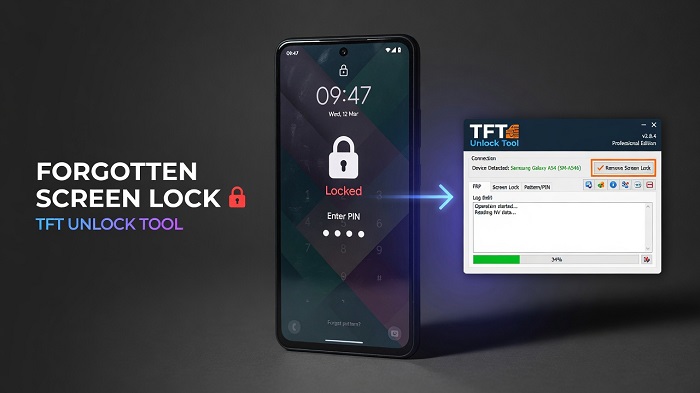
You are not the only person who has found it difficult to unlock their own phone due to forgetting their pattern, PIN, or password, and you do not have to lose it.
A more popular technician-grade tool for unlocking forgotten screen locks on supported Qualcomm devices is called TFT Unlock Tool. This guide explains the process of connecting your device, selecting the correct mode, and what happens to your data during the operation.
First and foremost, it is for your own device, or one that you are specifically allowed to work on. Tools to unlock the screen are intended for servicing an authorized device, not for accessing another person's phone.
Note: Only perform screen-lock servicing on a device you own or have explicit authorization to service.
Connecting Your Device
Unlocking an Android device without the password will often involve a low-level diagnostic connection rather than a regular USB debugging session. If USB debugging cannot be used, the required connection method depends on the device and supported servicing mode.
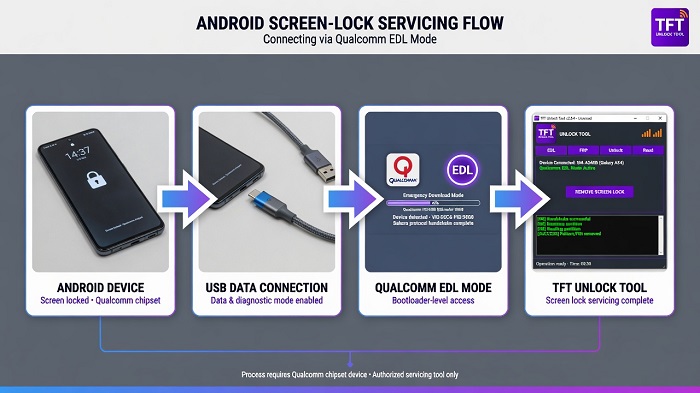
This is the overall connection flow:
- Install the Qualcomm drivers on your PC and restart the machine if prompted.
- Use a data-capable USB cable to connect the phone to the PC.
- Enter the mode TFT Unlock Tool needs for your specific device.
- Run TFT Unlock Tool and make sure the device is detected under the proper port.
Choosing the Right Mode in TFT Unlock Tool
Pattern-lock removal and PIN or password removal can differ depending on the device. The supported mode is determined by the exact model, chipset, firmware, and tool capabilities.
EDL Mode
EDL (Emergency Download Mode) is an important mode for many Qualcomm devices. EDL provides a low-level communication path that can be required when normal access to the device is unavailable.
- EDL Mode: Used for supported Qualcomm devices. The method of entering EDL depends on the specific phone.
- Fallback Mode: On some older or particular OEM devices, TFT Unlock Tool may provide an alternative diagnostic mode if EDL is unavailable.
Support is model-specific, so check the device profile inside the tool before assuming a particular mode or function is available.
Step-by-Step: Remove the Screen Lock
Once the device is connected and the correct supported mode is selected:
Choose the correct supported model from the device list in TFT Unlock Tool.
Select the "Remove Screen Lock" or similar function available for that model.
Confirm the operation after checking that the selected model and connection mode are correct.
Do not disconnect the cable or close the tool while the operation is running.
The device will usually restart automatically after completion or may ask you to restart it manually.
Set up the device normally after the supported servicing operation has completed.
Typically, this process takes several minutes depending on the device and storage capacity.
Will I Lose My Data?
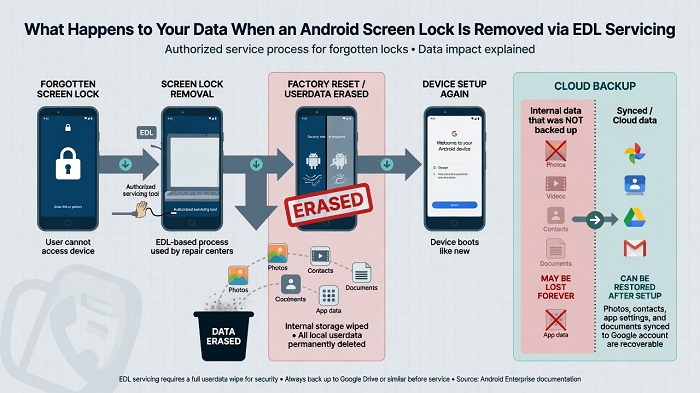
Unlocking a forgotten screen lock with EDL mode generally removes the user's data on supported modern Android devices. Many current versions of Android require the userdata partition to be reset in order to remove the screen lock.
This is the case with EDL-based servicing in general and is not unique to TFT Unlock Tool, particularly on Android 10 and later devices where user data is protected by encryption.
Information synced to a Google Account, such as contacts and photos, may be retrievable after setup if it was previously backed up or synced.
Locally saved information that was not synced to the cloud may not be recoverable after the reset.
Data stored on an SD card may remain available because it is separate from the phone's internal storage, although this depends on how the card and device were configured.
Important: Treat screen-lock removal as potentially destructive and make sure any available backups are secured beforehand.
Conclusion
Being locked out of your own phone because you forgot your pattern, PIN, or password can be stressful, but supported servicing tools can provide a way to restore access on compatible devices.
TFT Unlock Tool can provide screen-lock servicing functions for supported Qualcomm devices, including operations that use diagnostic modes such as EDL.
The exact procedure depends on the device model, chipset, firmware, Android version, security patch, and functions supported by the tool.
Most importantly, understand the data implications before starting. If the operation resets userdata, locally stored information that has not been backed up may be permanently lost.