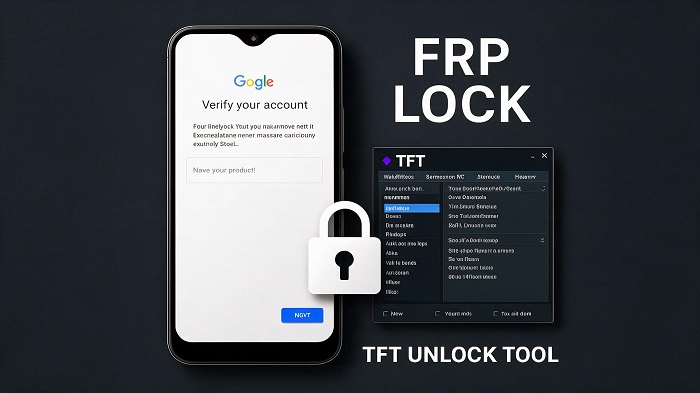
FRP (Factory Reset Protection) is a security feature from Google designed to protect an Android phone from unauthorized use after a factory reset.
If a user doesn't remember their Google Account login details, the phone may stop at Google Account verification when they try to use it again after the reset.
In such cases, the TFT Unlock Tool may be used for FRP-related servicing. This guide explains the process, along with common errors and possible solutions.
Note: Only service a device that you own or have explicit authorization to work on.
What Is FRP Lock on Android?
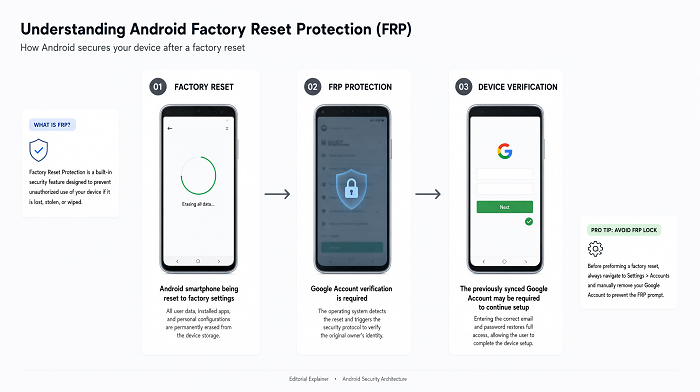
Factory Reset Protection (FRP) is a Google security system introduced with Android 5.1 and later versions.
Its main function is to make sure that when a person resets an Android device that has been protected by a Google Account, the device may ask for verification of the account that was previously associated with it.
In other words, resetting the device to factory settings does not necessarily remove ownership verification. The previously synced Google Account may be needed after the reset for verification.
FRP can commonly appear in the following situations:
- After performing a factory reset from the Recovery Menu
- Resetting the phone before selling it without removing the Google Account
- Forgetting the Google Account login details
- Purchasing a used phone where the previous owner's account was not removed
- Failing to properly prepare the phone before performing a reset
What Is TFT Unlock Tool?
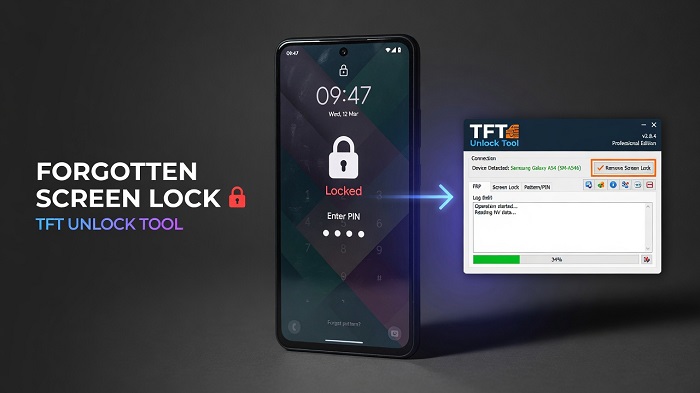
TFT Unlock Tool is professional Android repair and servicing software used to resolve different kinds of issues in Android devices and perform software-related servicing tasks.
It provides various functions for FRP unlock, pattern/password unlock, bootloader unlock, firmware flashing, and even IMEI repair on some supported devices.
In addition, it is compatible with popular chipsets like Qualcomm and MediaTek. TFT Unlock Tool offers multiple servicing options for various popular brands like Samsung, Xiaomi, Vivo, Oppo, Huawei, Motorola, and others.
However, support can vary depending on the exact device model, chipset, firmware, Android release, and security patch.
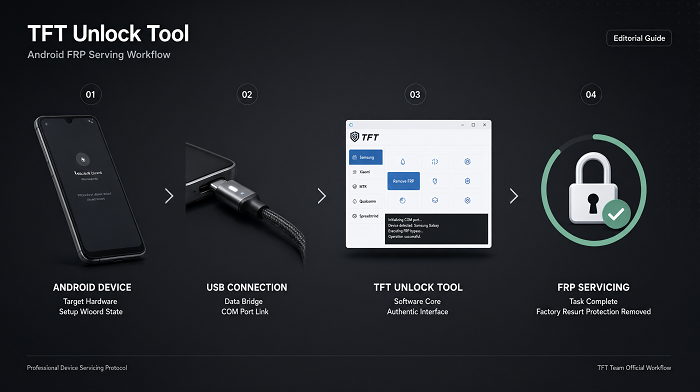
Step-by-Step: How to Remove FRP Lock
The exact procedure can vary depending on the phone's brand, model, chipset, Android version, and security patch. Use the supported option for your specific device.
Download the tool from a trusted source and install it on your Windows PC.
Extract the ZIP or RAR archive if required, install the setup, and install the appropriate USB drivers for the device.
Restart Windows if required after installing the drivers.
Run TFT Unlock Tool as administrator and prepare the phone for connection.
Connect the device using a compatible USB data cable and the connection mode required by the device.
Choose the appropriate mobile device brand or supported model option.
Choose the FRP servicing function supported by your specific device.
Do not disconnect the phone or close the tool while an active servicing operation is running.
Once the supported operation has completed, follow the device's normal setup process.
If the operation fails, verify that the selected device model, chipset, firmware, drivers, and connection mode are compatible with the tool version.
Conclusion
One of the popular tools used to service Android devices is TFT Unlock Tool. It can also provide FRP-related servicing functions, device unlocking options, and firmware flashing features on supported devices.
FRP is designed to protect Android devices from unauthorized use after a factory reset, so any servicing should only be performed on a device you own or are authorized to handle.
The exact availability of FRP functions depends on the device vendor, model, chipset, firmware, Android release, and security patch.